Setup guide

From the box to the wall, in one sitting.

A step-by-step guide to putting your masjid’s Prayer Times screen on the wall: what to prepare first, then how to go from a blank TV to a live prayer display.

Written for mosque committees About 10 minutes No technician needed
Before you begin

What you’ll need

Four things to have ready. With these in hand, the setup itself takes only a few minutes.

A NESCO account

Opened by the NESCO team — request one from the portal or by phone. It holds the profile your screen will join.

An Android TV or box

Any TV that runs Android TV, or any screen with an Android box behind it. Android 6.0 (2015) or newer.

Internet for setup

A Wi-Fi or wired connection for the first pairing and the initial sync. Afterwards the screen keeps working offline.

A phone or a computer

The companion app on a phone to scan the code, or any computer to open the web dashboard and type it in.

1Install

Get the app onto the TV

On the TV, open Google Play and search for “Prayer Times Screen” by NESCO, then install it. On an Android box, install it the same way from its own app store.

Open the app once it’s installed. The first time it runs, it shows a pairing screen — that’s the next step.
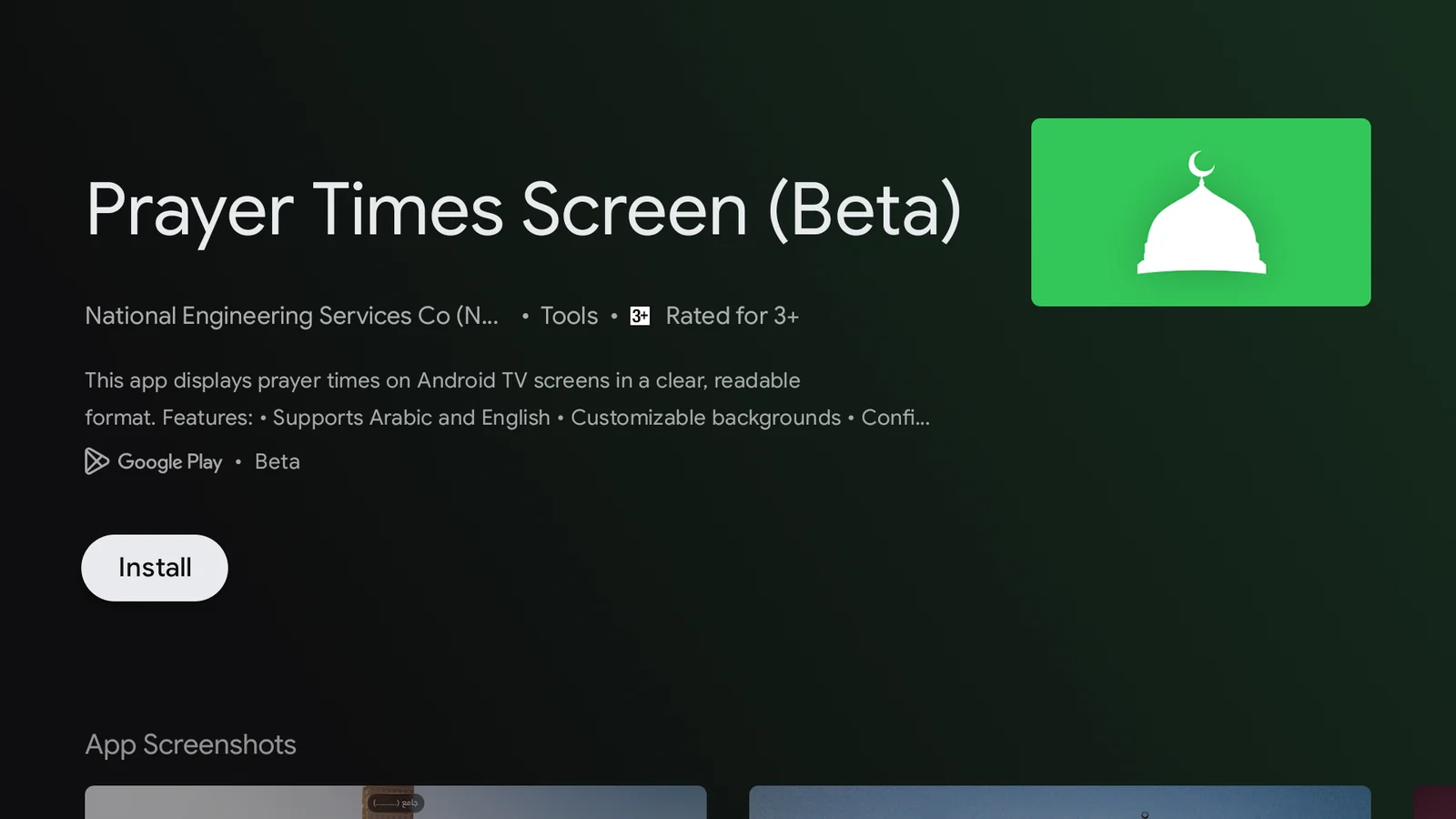
Get it on Google Play

The Prayer Times Screen listing on Google Play, with its Install button
What to look for in the store
2Set up

Create your profile and screen

Sign in to the dashboard or the companion app. A profile holds everything the display shows: times, look, wallpapers and announcements.
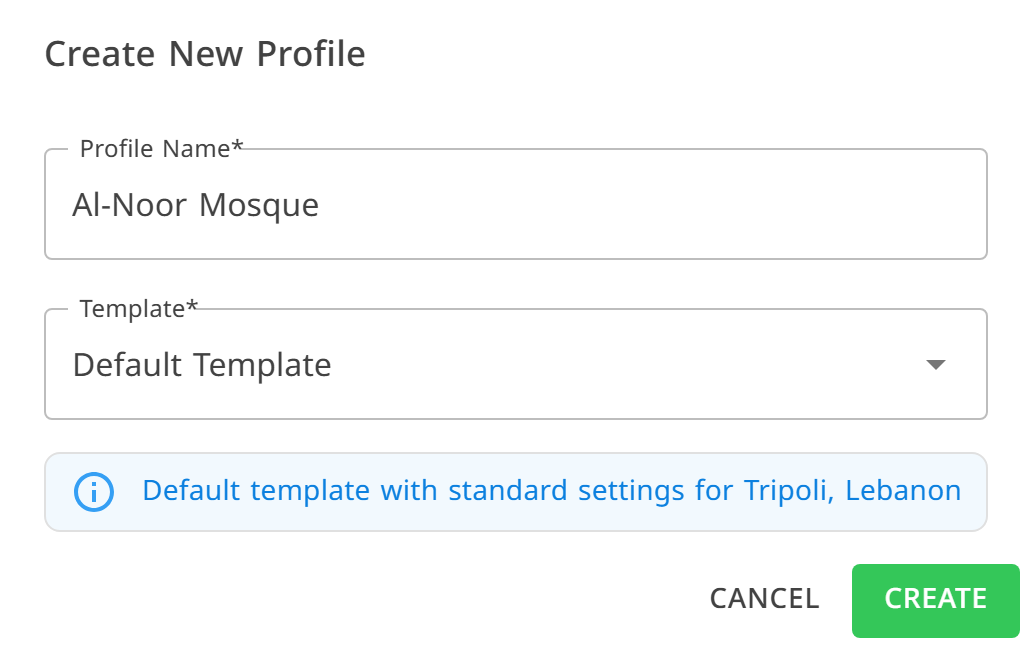
Create a profile On the “Profiles” page press “Create New Profile”, name it, and start from the default template.
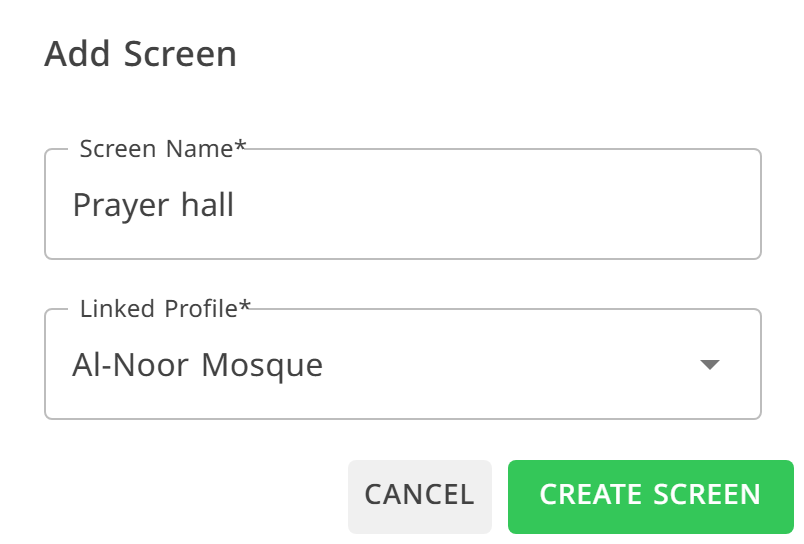
Add a screen that follows it On the “Screens” page press “Add Screen”, give it a name you recognize, like “Prayer hall”, and pick the profile it follows.
The Create New Profile dialog in the dashboard The Add Screen dialog with a name and a linked profile
The profile first, then the screen that follows it
3Pair

Connect the screen to your masjid

The TV now shows a QR code with an 8-character code beneath it. On your screen’s row, press “Link Device” and point the camera at the TV. That’s the whole pairing.
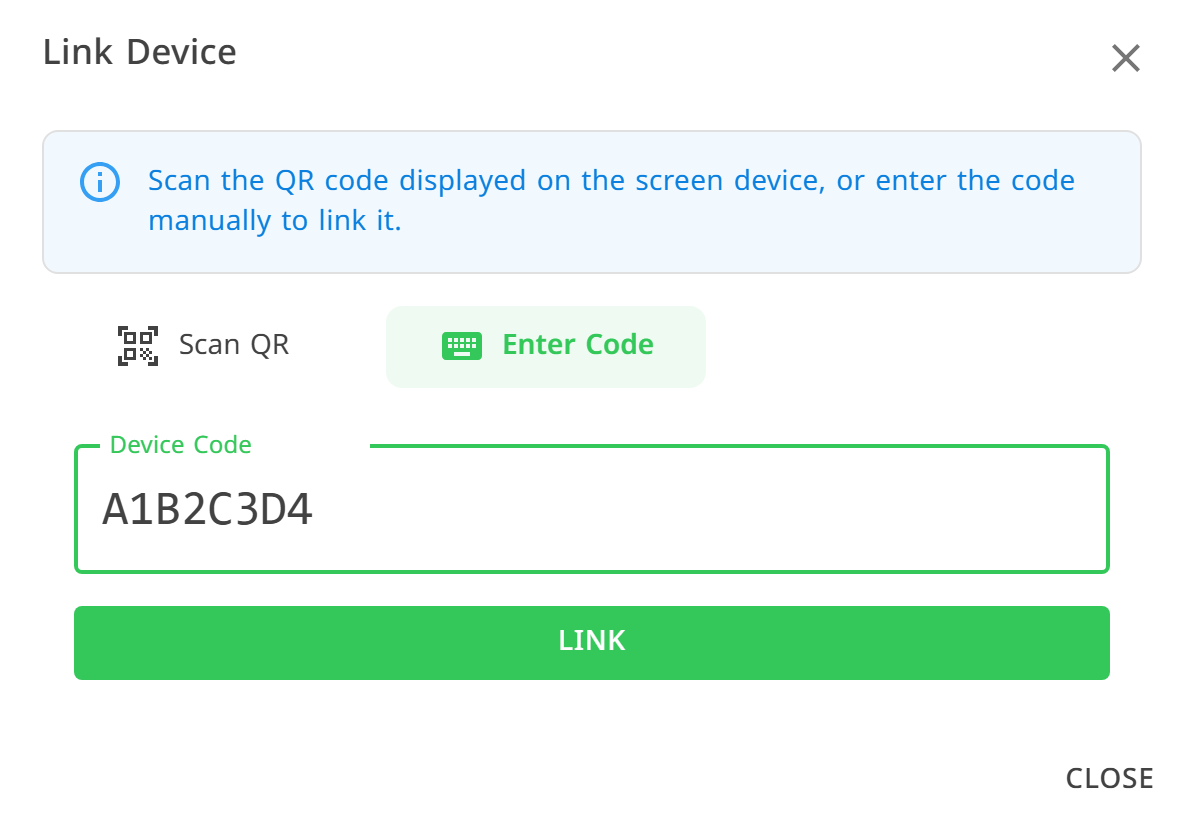
The Link Device dialog with the Enter Code tab open and a device code typed in
No camera at hand? “Enter Code” takes the code shown on the TV.
Bring the camera close until the phone catches the code
The code is valid for five minutes. If it expires, the TV shows a fresh one by itself. There is nothing to press.
4Set times

Set your times and pick a look

Once paired, the screen follows its profile. Open the profile’s settings to choose the city and calculation method; a live preview shows the day’s adhan and iqama times exactly as the screen will show them.

Give each prayer its own iqama minutes, nudge any time by a few minutes to match your mosque’s own timetable, and manage wallpapers, display modes and announcements from the same place. Every change reaches the screen within seconds.
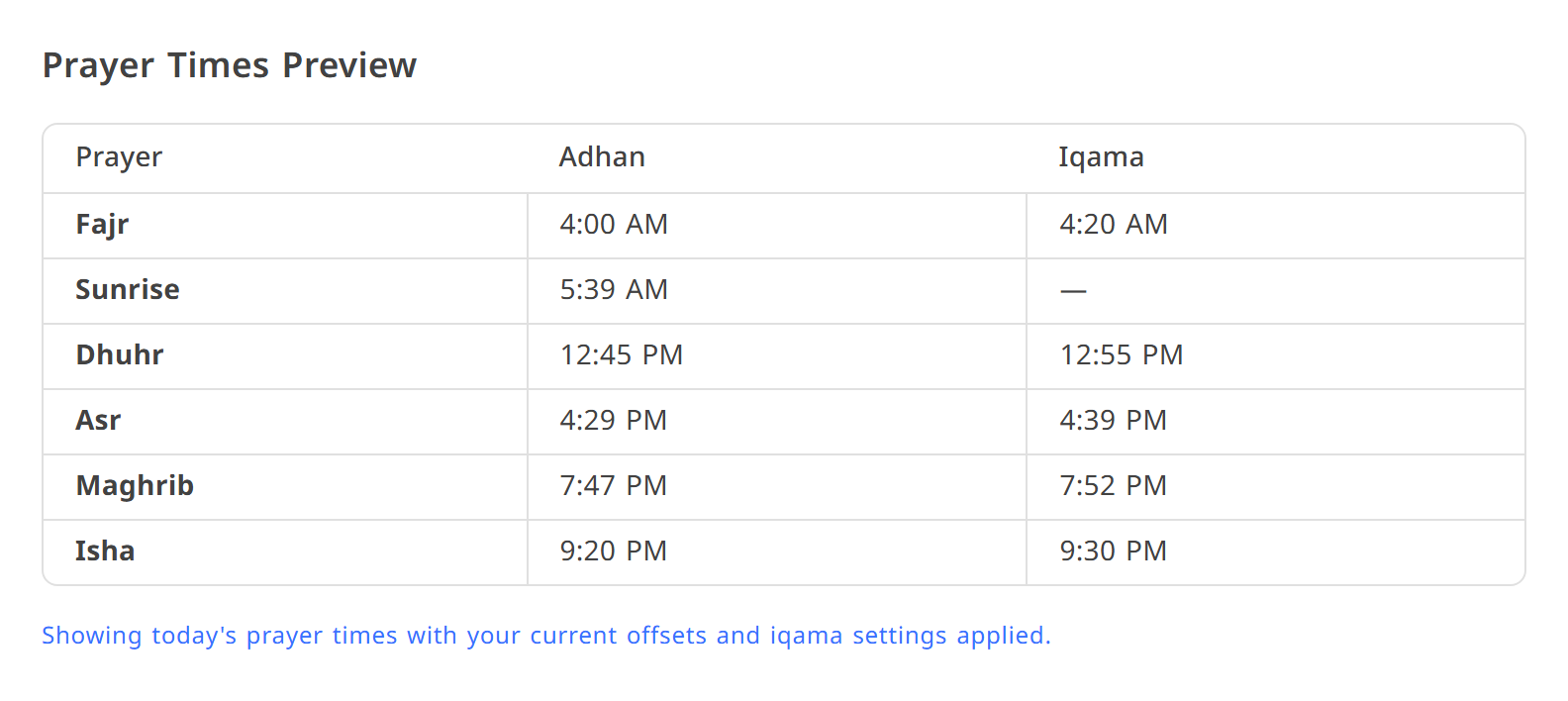
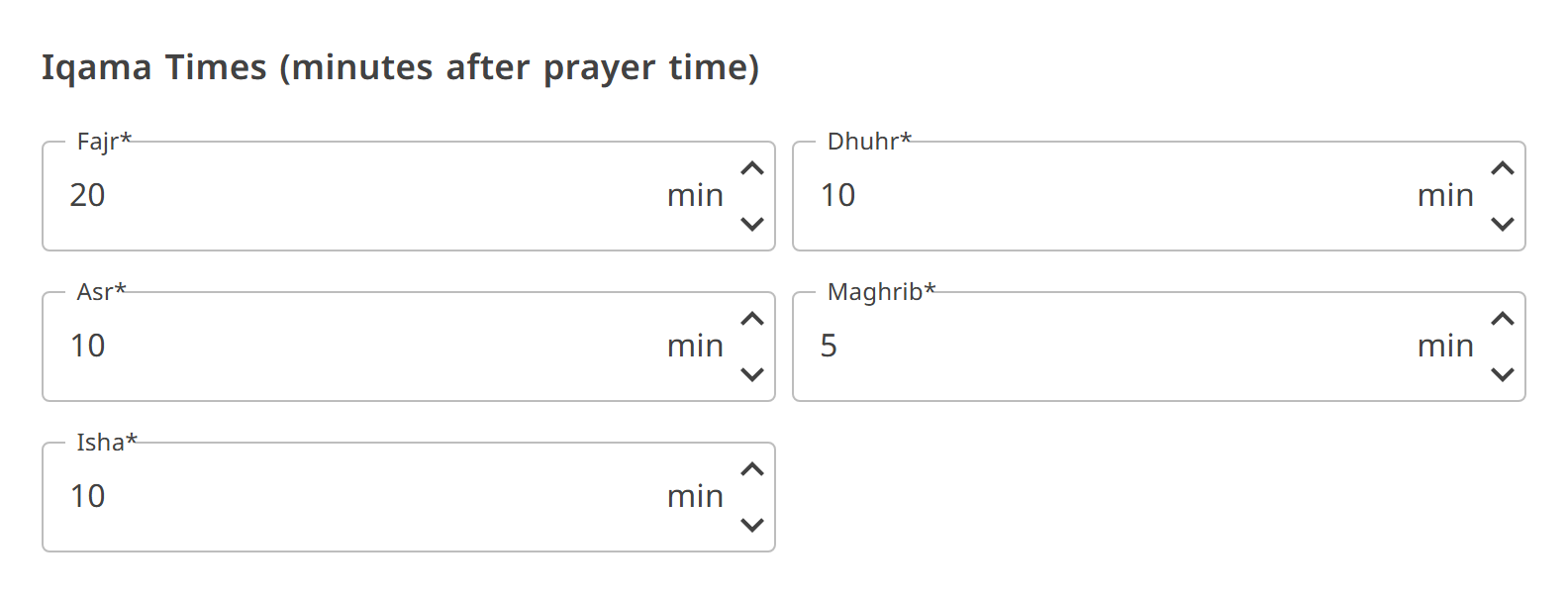
The Prayer Times Preview table with adhan and iqama columns The Iqama Times panel with minutes for each prayer
Today’s preview, and each prayer’s own iqama minutes
5Done

Done, the screen is running

You’ll see “Screen linked successfully!”, and within moments the TV signs in and starts showing your masjid’s prayer times. From now on nobody touches the TV: every change is made from the phone or dashboard and reaches the screen in seconds.

It also keeps a full year of prayer times on the device, so it carries on exactly on schedule even if the internet drops.

The screen after pairing
After setup

Everyday use

The screen needs no one. At every prayer it moves through these four stages by itself, then returns to the prayer times:

  1. Adhan playsits own recording per prayer, or upload your muezzin’s
  2. Iqama countdowneach prayer with its own duration
  3. Prayer in progressthe screen asks for phones to be silenced
  4. Azkar after salahremembrance on screen before returning to the times
On the TV itself

Adjusting the screen

The TV has no visible buttons, so its setup can’t be knocked out of place by accident. When you need the on-screen settings, press the OK (center) button on the remote and a panel with these six controls opens:

LanguageSwitch the display between Arabic and English.
Accent colorSet the highlight color used across the display.
AnimationsTurn transitions on or off; ease them off on older devices.
BlurToggle the glass blur behind cards for weaker hardware.
Log outUnlink this screen from the masjid to pair it elsewhere.
ExitClose the app when the device needs maintenance.
Remember: prayer times, methods, wallpapers and announcements are all set from the dashboard or companion app. The TV’s own settings only cover the screen itself.
If something’s off

Setup troubleshooting

The handful of things that trip people up during setup.

The code refreshes on its own. Read the new code shown on the TV and use that, or reopen the app to get a fresh one.
Pairing needs a connection. Check the TV’s Wi-Fi in its Android settings, then reopen the app. Once it’s paired and has synced once, it no longer needs the internet to run.
Times come from the profile, not the TV. In the dashboard or companion app, check the city and calculation method, and adjust any prayer by minutes. The screen updates within seconds.
That’s the TV’s own sleep. In the TV’s Android display settings, turn off the screen timeout (and any screensaver or daydream) so the display stays on around the clock.
Turn the TV back on and open the app. The screen returns exactly as it was, with all its settings, even before the internet comes back.

Put the prayer schedule on the wall this week.

Accounts are opened by the NESCO team. Request one from the portal, or call us and we’ll walk your masjid through setup, pairing included.